 Smart Cards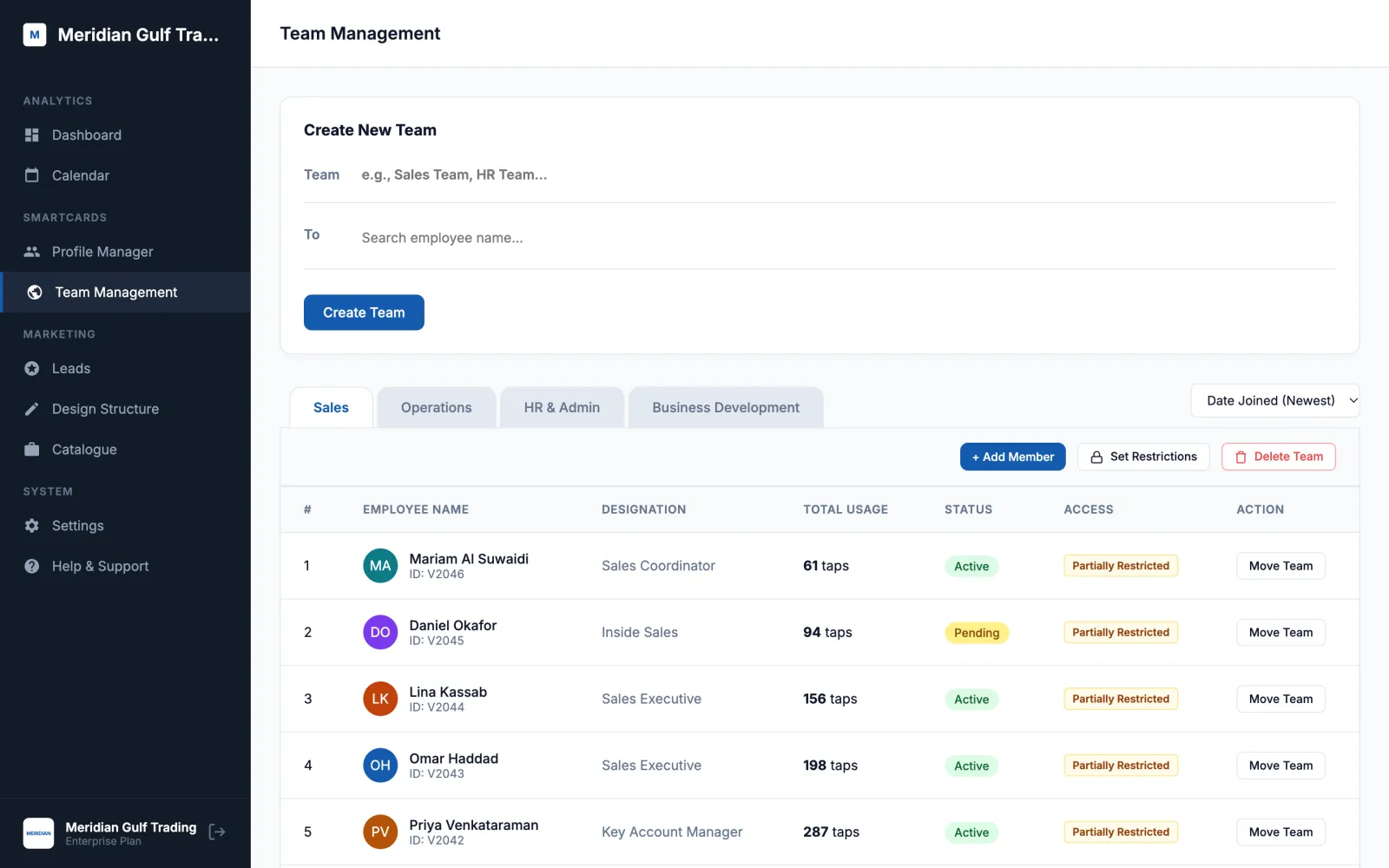
In short: treat digital business cards like any other company asset. Decide which details the company owns, set branding once, mirror your org chart in teams, lock the fields that must stay consistent, and put the card on both the joiner and leaver checklists. Then make sure every lead your people collect lands in one place.
Rolling out NFC business cards to one person is easy. Rolling them out to a whole company exposes questions nobody asks when ordering paper cards. Who approves job titles? What happens when someone is promoted? What does a client see when they tap the card of someone who left last month? Who gets the contacts the sales team collects at a trade show?
Here is how to set it up so those questions have answers before they become problems.
Why digital cards need managing at all
A paper card is frozen on the day it is printed. A digital business card is live: its profile can change at any time, from anywhere. That is the main benefit, and it is also the risk. Without a central owner, a company ends up with dozens of profiles that each say something slightly different about it, and some that should not exist any more.
The fix is a single organization view: one place where the company sees every employee's card, controls branding and company details, and can act when people join, move and leave.
The 7-step rollout playbook
1. Decide what the company controls
Before touching any software, write two short lists. Company-owned fields are things like job title, company name, office address and website. Employee-owned fields are things like the profile photo and a personal LinkedIn. Agree them with HR and marketing. This list becomes your field locks in step 4.
2. Set the brand once
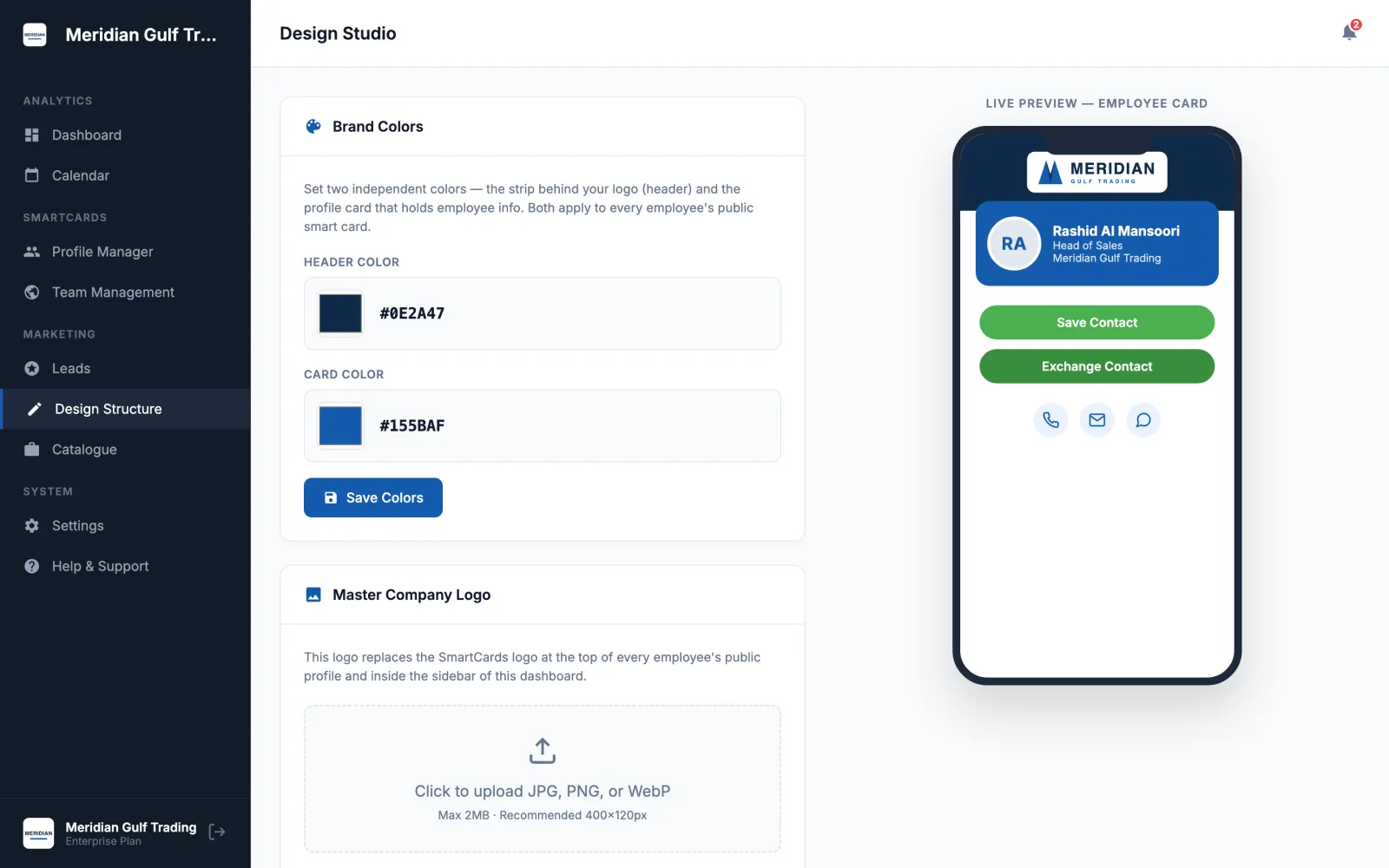
Upload your logo and choose two colours: one for the header strip behind the logo and one for the profile card and its buttons. In a white-label setup, these replace the platform's own branding on every employee's public profile, and employees cannot change the theme. Check the live preview on a phone before you save.
3. Mirror your org chart in teams
Create teams that match how you actually manage people: Sales, Operations, HR and Admin, Business Development. Each employee sits in one team. Teams matter because they are where you set rules, and because leads can later be filtered by them.
4. Lock fields per team
Different teams need different rules. A sales team might have designation, company name, address, website and social links locked so every client sees the same official details. An operations team might only need the company name locked. Theme and header image stay locked for everyone in the organization automatically.
Lockable fields in the Smart Cards portal are designation, company name, address, name, WhatsApp, email, profile photo, websites, social media and the product catalogue.
5. Invite everyone in one batch
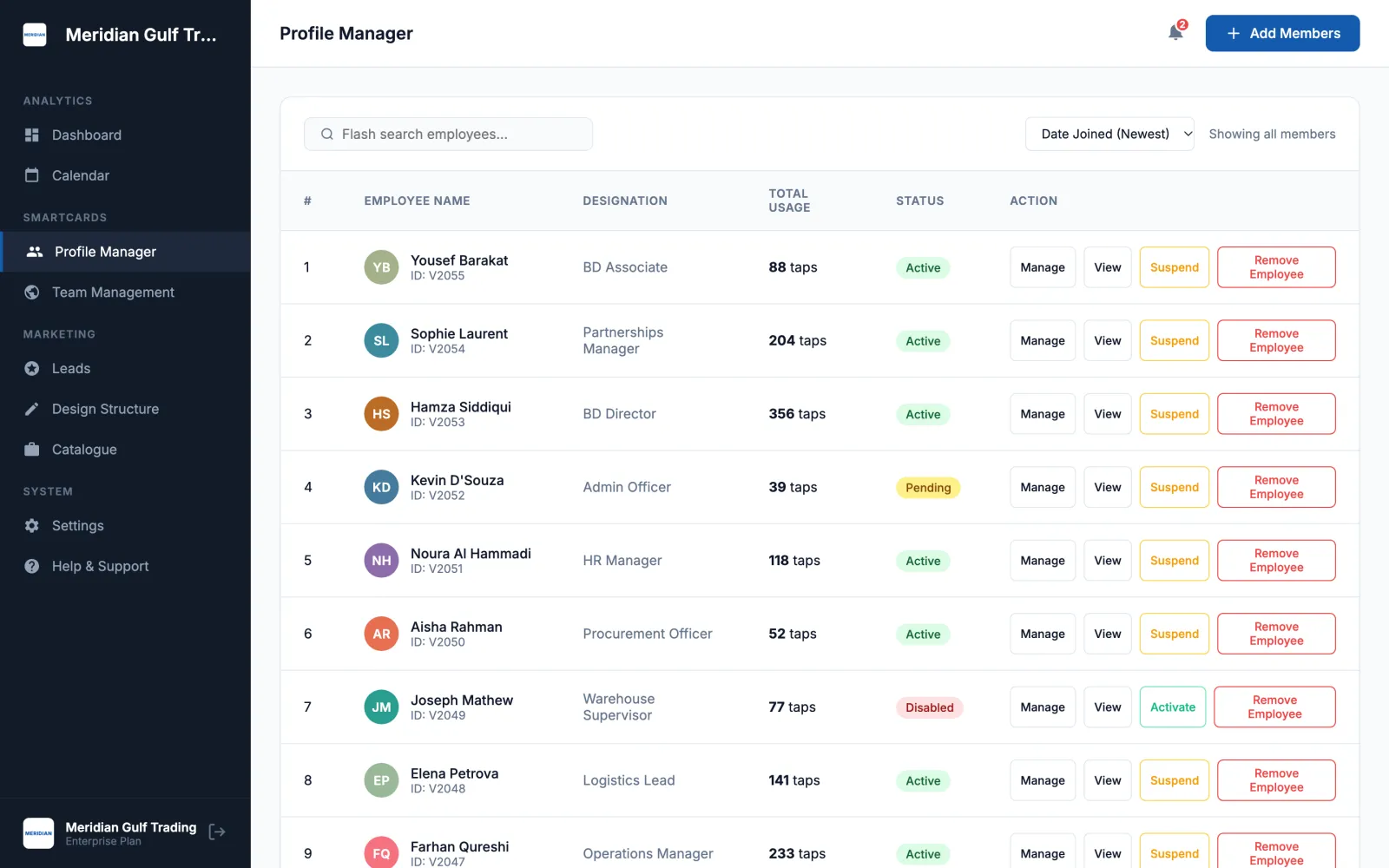
Collect each employee's card ID or email and paste the list into Add Members. Each person receives a join request and their profile comes under company management once they accept. That consent step matters for trust, and it means nobody is surprised to find their profile changed. Check the Profile Manager a few days later for anyone still showing as pending.
6. Route every lead to one place
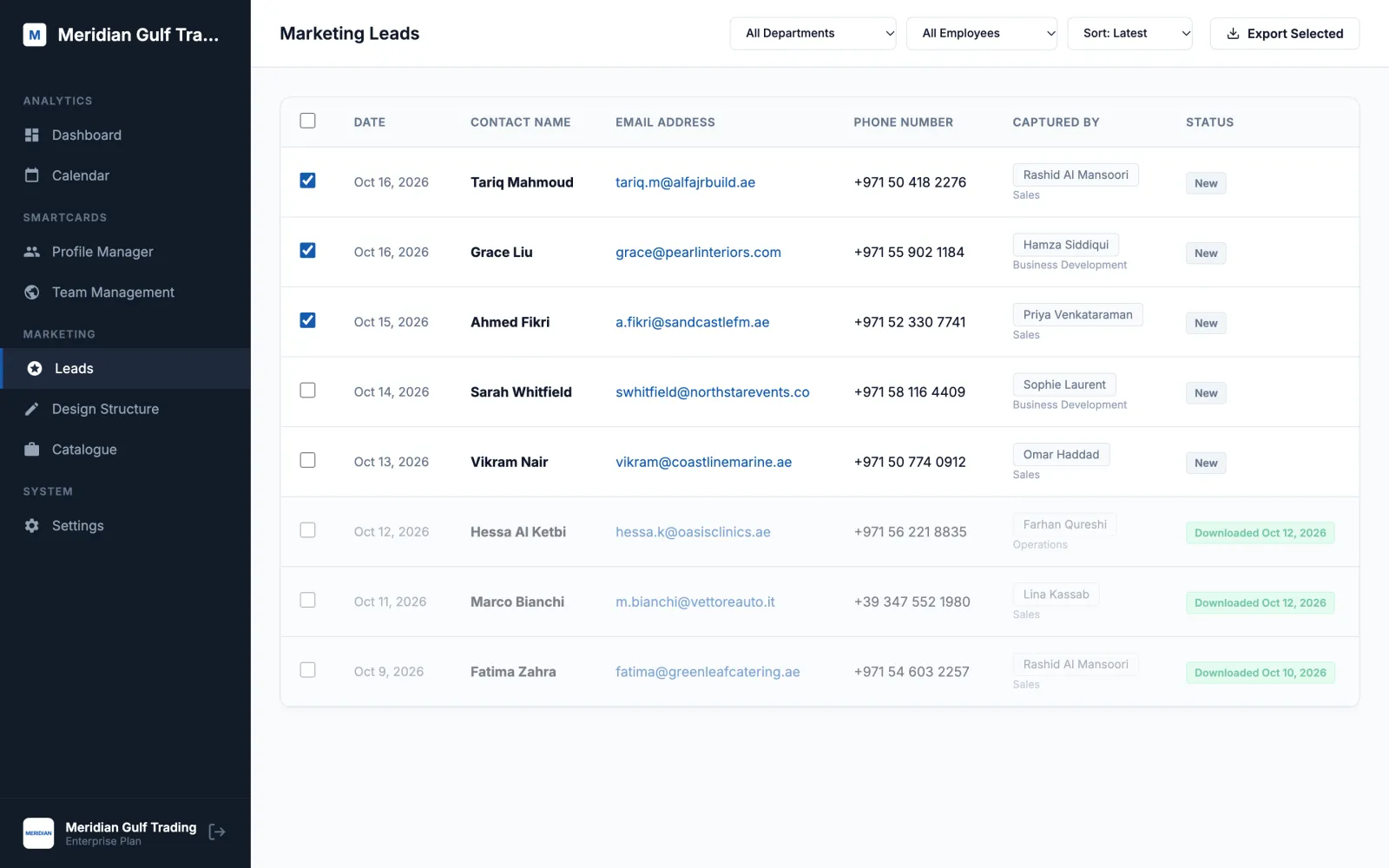
This step turns business cards from a cost into a sales tool. When a prospect taps an employee's card, they can use Exchange Contact to share their name, mobile, WhatsApp and email back. The employee gets an email straight away. The company should see it too, in one list tagged with who captured it and which team they are in.
Agree who reviews that list and how often. After an event, filter by team, tick the new leads, and export a CSV for your CRM. Exported leads are marked so two people do not follow up on the same contact.
7. Put cards on the joiner and leaver checklists
The rollout is a one-off. Keeping cards accurate is a process. Add three lines to your HR checklists:
- Joiners: order the printed card in week one and send the join request on day one.
- Movers: on a promotion or transfer, move the person to their new team. The new team's locks apply straight away, and an admin can correct the title directly.
- Leavers: on the last day, suspend the card. Anyone who taps it then sees a suspended notice instead of old contact details. If the person should keep a personal profile, remove them from the organization instead; they keep their standalone profile without company branding.
Who owns what
| Task | Usually owned by | How often |
|---|---|---|
| Logo and brand colours | Marketing | Once, then on rebrand |
| Teams and field locks | HR | At rollout, then on reorganization |
| Invites and pending members | HR | Every joiner |
| Suspending leavers | HR | Every leaver, on the last day |
| Reviewing and exporting leads | Sales operations | Weekly, and after every event |
| Company products on cards | Marketing or sales | When the offer changes |
Common mistakes
- Letting everyone design their own card. The point of a company rollout is consistency. Set the brand centrally.
- Forgetting leavers. A live profile for someone who left is worse than an out-of-date paper card. Make suspension part of the exit checklist.
- Leads stuck in personal inboxes. If only the employee sees the contacts they collect, the company loses them when the employee leaves.
- Locking everything. Staff stop using a card that does not feel like theirs. Lock what the company owns, nothing more.
- Per-seat pricing surprises. Model the cost at your headcount in two years before you choose a platform.
Frequently asked questions
Who should own digital business cards in a company, HR or marketing?
Usually HR owns the roster because cards follow the joiner and leaver process, and marketing owns the branding. The organization portal admin login can be held by either, as long as both processes are written down.
Can employees still edit their own digital business card?
Yes. Employees keep editing anything the company has not locked. Field locks are set per team, so a sales team can have titles locked while keeping their photo and personal LinkedIn editable.
Does the employee have to agree to join the company portal?
In Smart Cards UAE, yes. Adding someone sends a join request, and their profile only comes under company management once they accept. If they decline, the company admin is notified.
What does a prospect see if they tap a suspended card?
They see a notice that the profile has been temporarily suspended by the organization administrator, instead of the former employee's contact details.